Retro Review: Aztech Sound Galaxy Pro 16 IIB-3D PnP - Part 2
14th July 2026
In Part 1 I took a first look at this nice Aztech sound card. Let's take another look at it:

Aztech Sound Galaxy Pro 16 IIB-3D PnP (FCC ID I38-MMSN845, ca. 1996)
In this part 2 I will install the software and do some preliminary checks to be sure we are getting audio output.
DOS Installation
It's likely that any DOS drivers for 3rd-generation Aztech cards will work with this one, but I've had issues before where drivers expect a specific model of card and won't initialise on others.
For the initial test, I am going to use the "Aztech Sound Galaxy Pro 16 II v1.10 drivers", of which there are 2 disks. This is a set of drivers written for this card's predecessor, the Sound Galaxy Pro 16 II, and contains drivers for DOS, Windows 3.1, and Windows 95. It's dated around September 1996.
Since I am using a Gotek floppy emulator with my retro PC, I created two new .IMA (1.44 MB floppy disk image) files of these disks and copied them to my USB drive to install into the Gotek.
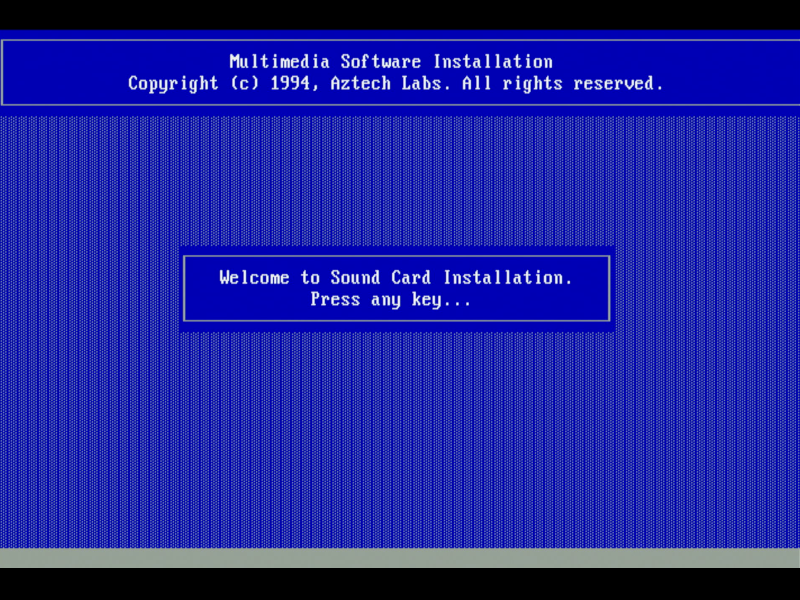
I then booted my retro PC, went to 'drive A:' on the Gotek and ran INSTALL.EXE:
1) Starting INSTALL.EXE, choosing the destination directory, and copying files:


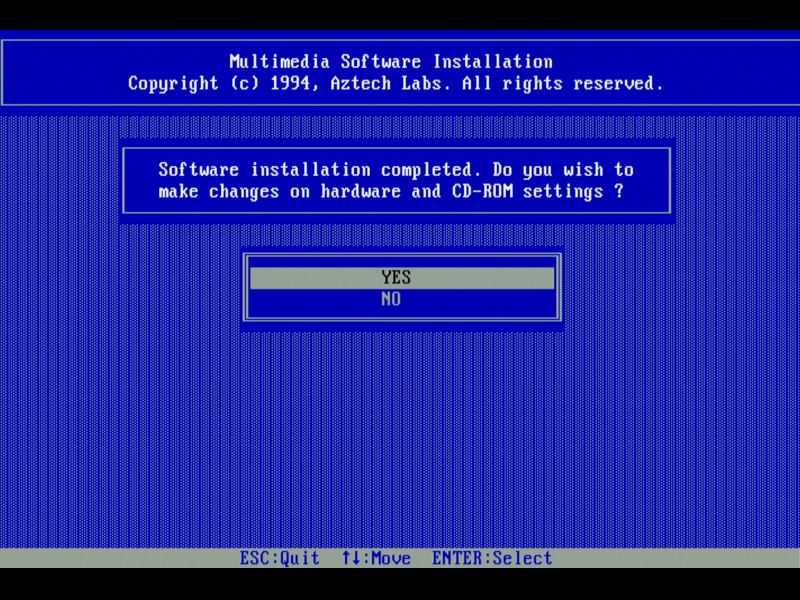
2) Configuring the card:
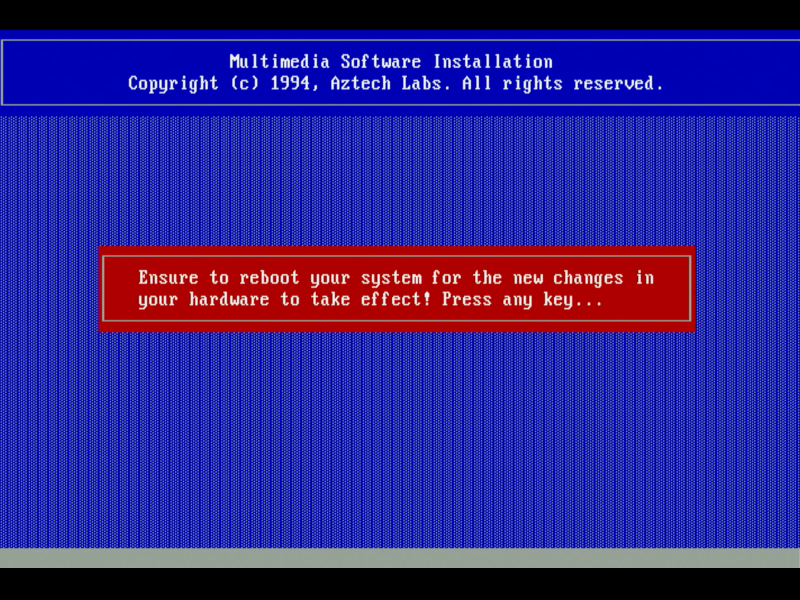
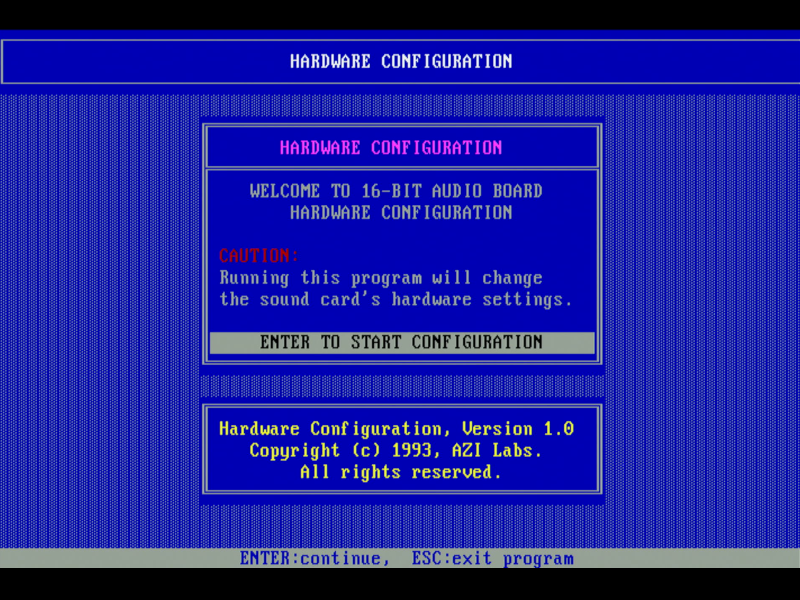
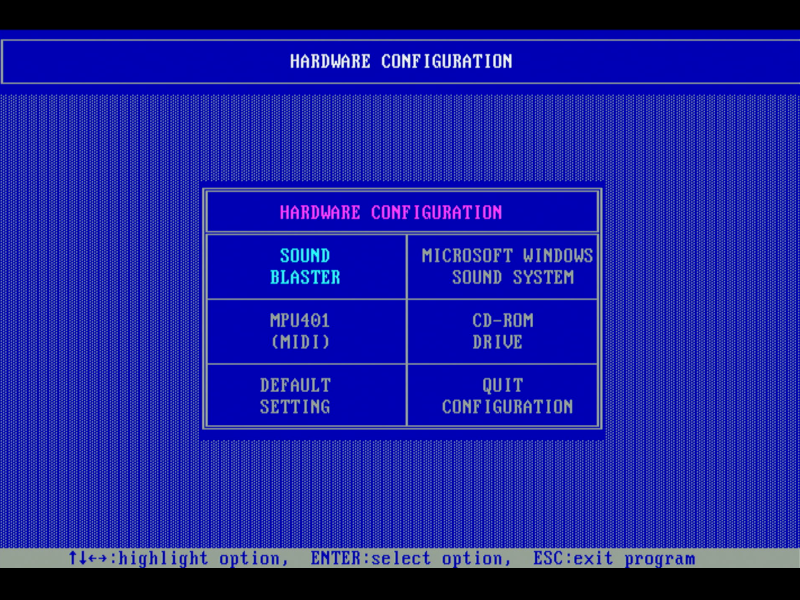
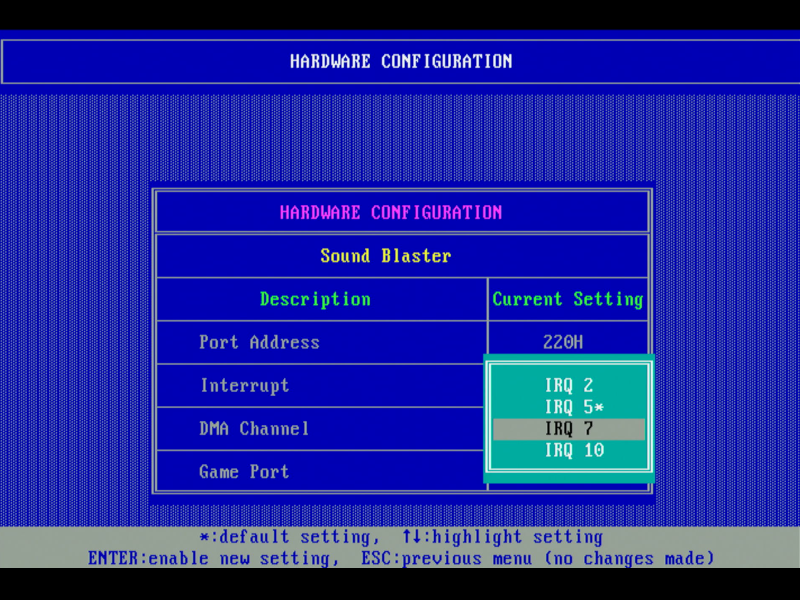


3) Testing:
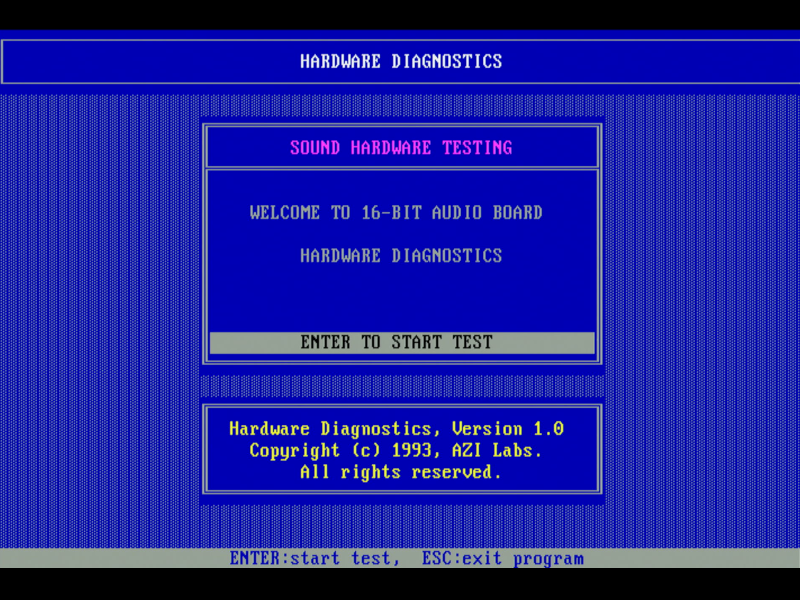
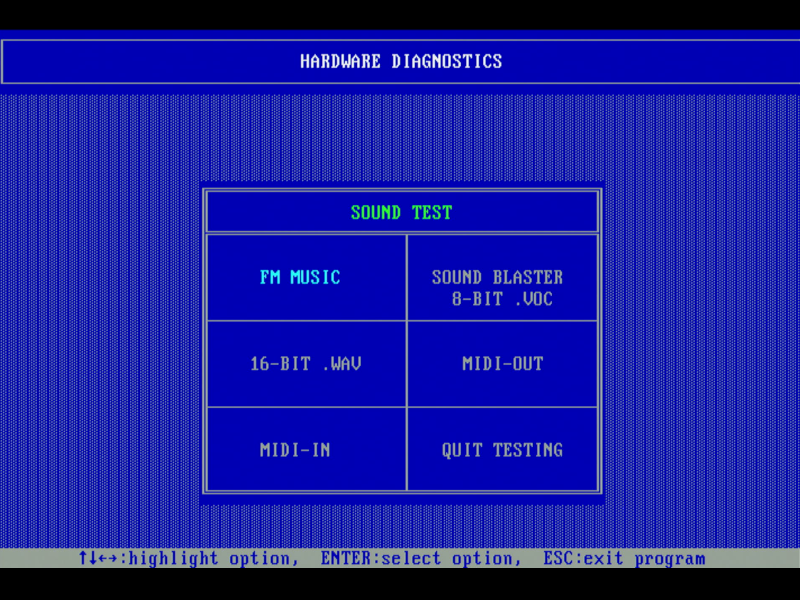
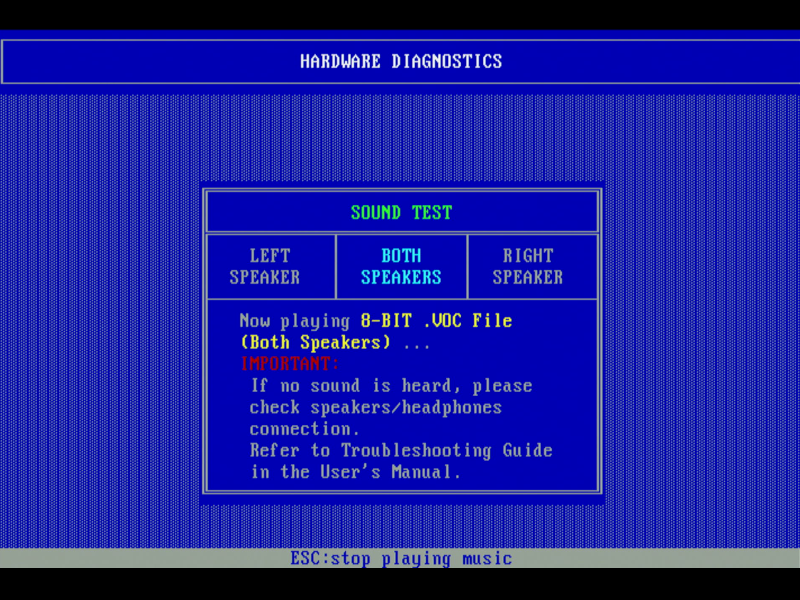

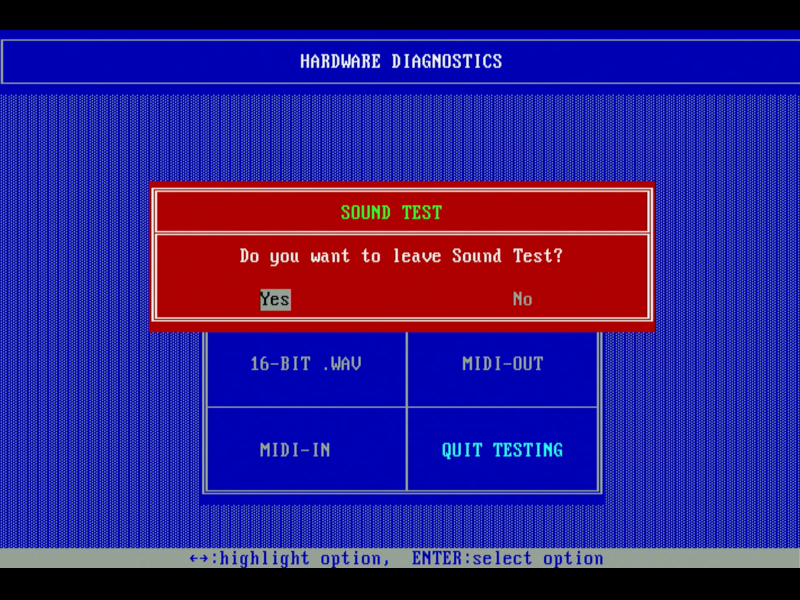


The installation program adds these lines to your CONFIG.SYS:
DEVICE=C:\MMPRO16\DRIVERS\EEPROM.SYS /88BC0001
DEVICE=C:\MMPRO16\DRIVERS\SGIDECD.SYS /D:MSCD000
and in AUTOEXEC.BAT:
SET GALAXY=A220 I5 D1 K10 P530 T6
SET BLASTER=A220 I5 D1 T4
C:\DOS\MSCDEX.EXE /D:MSCD000
The 8-digit hex code in the EEPROM.SYS line changes depending on the configuration you have selected. With just the Sound Blaster portion enabled and configured for base address 220, IRQ 5 and DMA channel 1, this read /88BC0001. When I enabled Windows Sound System (port 330h) and the CD-ROM drive for an "Aztech IDE" drive, this then read /88340201 so it's obviously just passing a hex string that makes up the configuration to the EEPROM driver that will then set the correct bits in the EEPROM.
It's probably worth mentioning that because I ran the DOS installer (INSTALL.EXE), it did not install any Windows drivers. It does still copy a Windows Help file into the MMPRO16 directory, but nothing else for Window (we'll cover the Windows installation a little further down)
After installation you can use HWSET.EXE to change the card's configuration or VOLSET.EXE to change volumes:
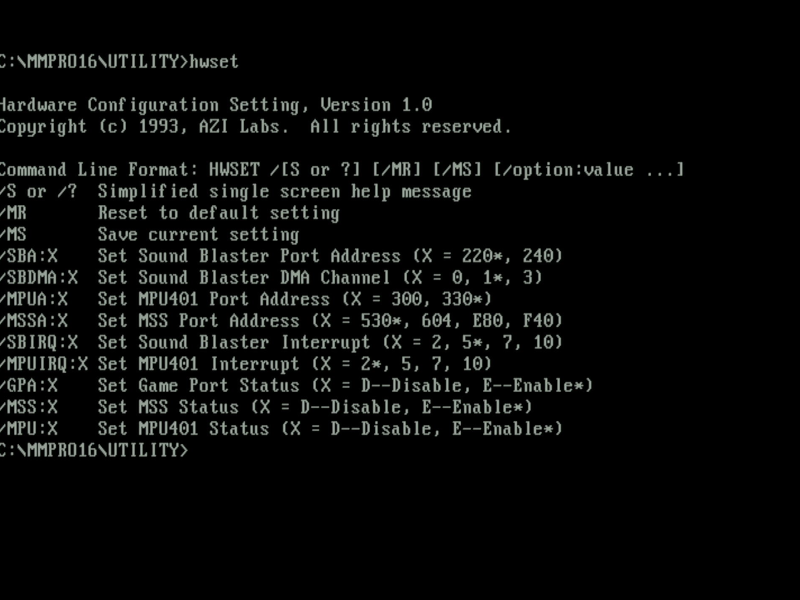
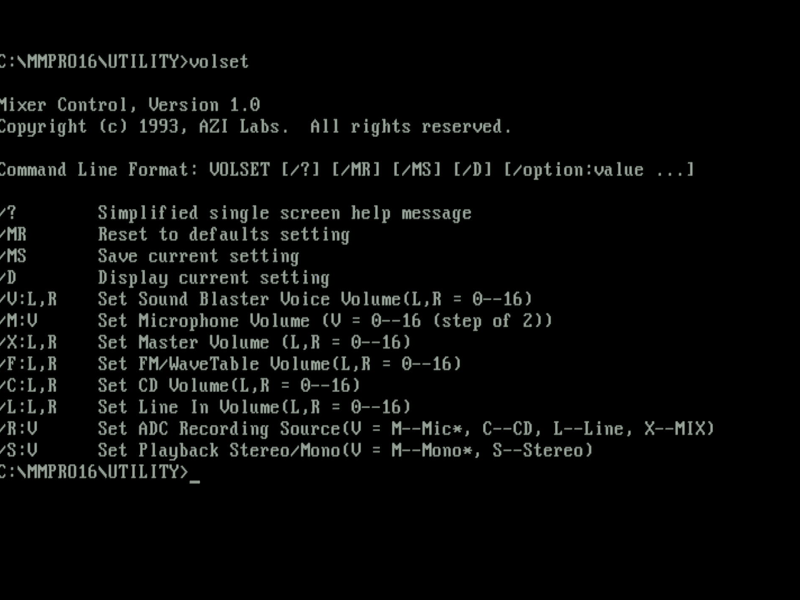


Note: VOLSET may set the card to mono by default, so check this and use the /S:S flag to put it into stereo.
There is also a TSR called MIXTSR.EXE that allows you to do the same on the fly:
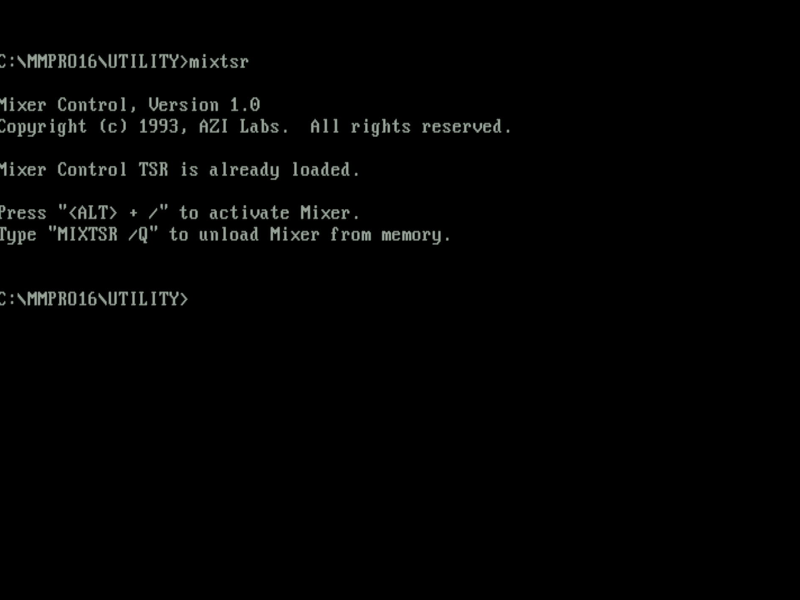
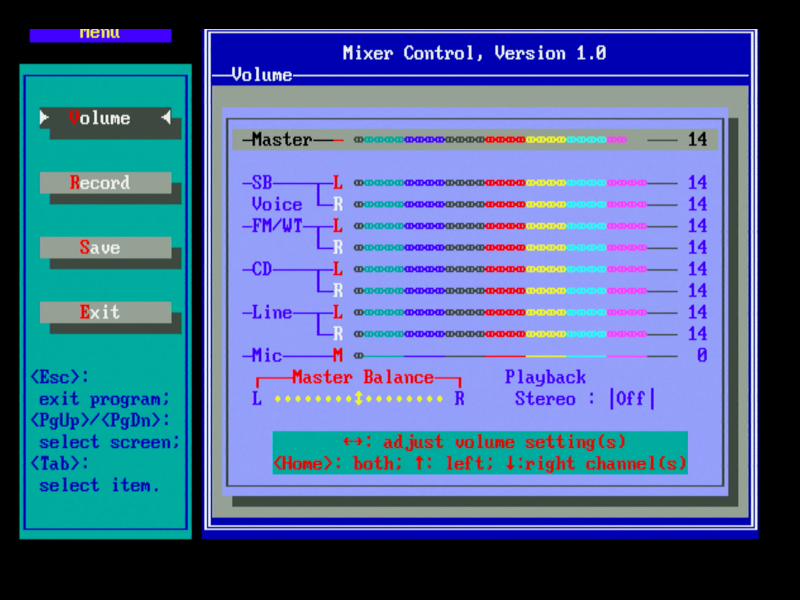
A nice idea, but most of us would be running something in graphics mode like a game when looking to tweak the volumes, and most games take over the keyboard handler completely. I tested this on a few games and the TSR either didn't pick up the keyboard shortcut at all or failed to switch to text mode and appear. What's more, the TSR takes up a huge 62 KB of base memory! (you cannot load it into high memory).
The only other DOS utility provided in this driver set is one called SETMODE:
This is used to change the default mode of operation for the sound card (when in DOS it defaults to Sound Blaster Pro mode, when in Windows it defaults to Windows Sound System mode). Usually you don't need to change this, and certainly I tried changing it to MSS mode in DOS and games still worked just fine when configured for Sound Blaster.
Windows 3.x Installation
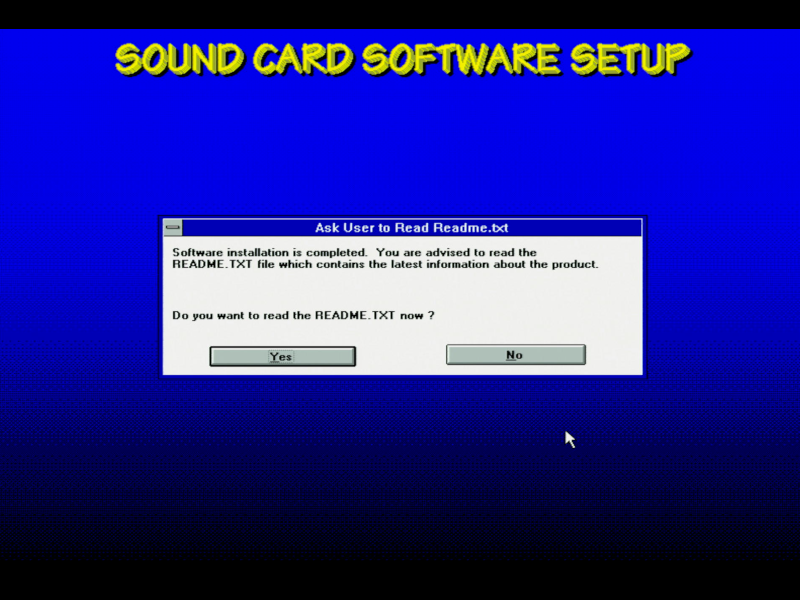
To install the Windows 3.x drivers and software, run SETUP.EXE from the first floppy disk when you're in Windows:
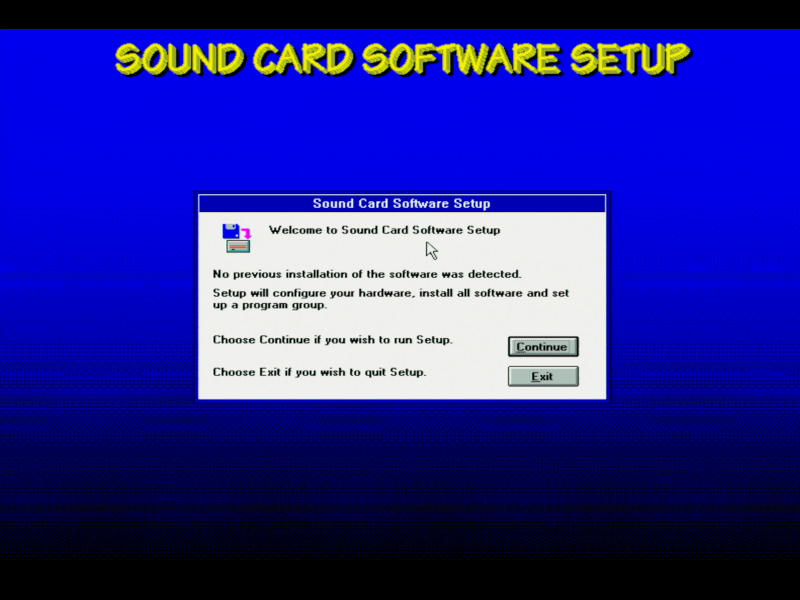
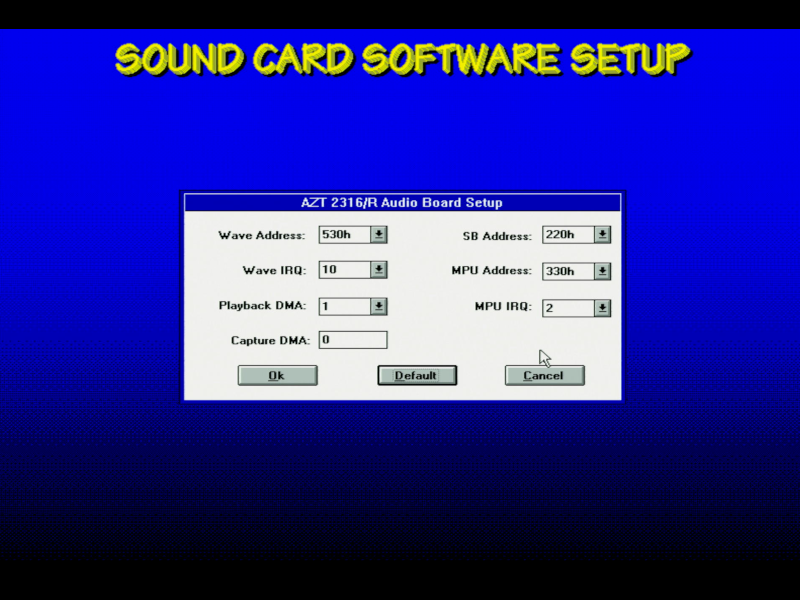
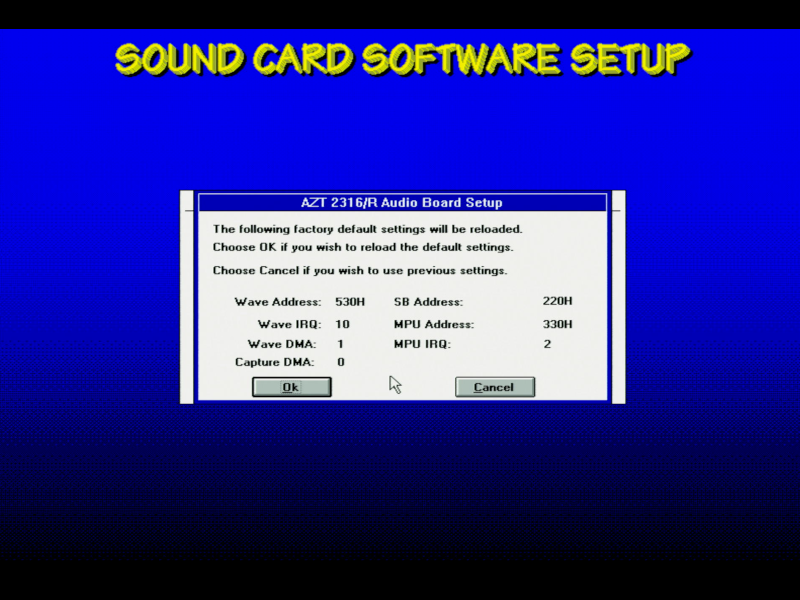
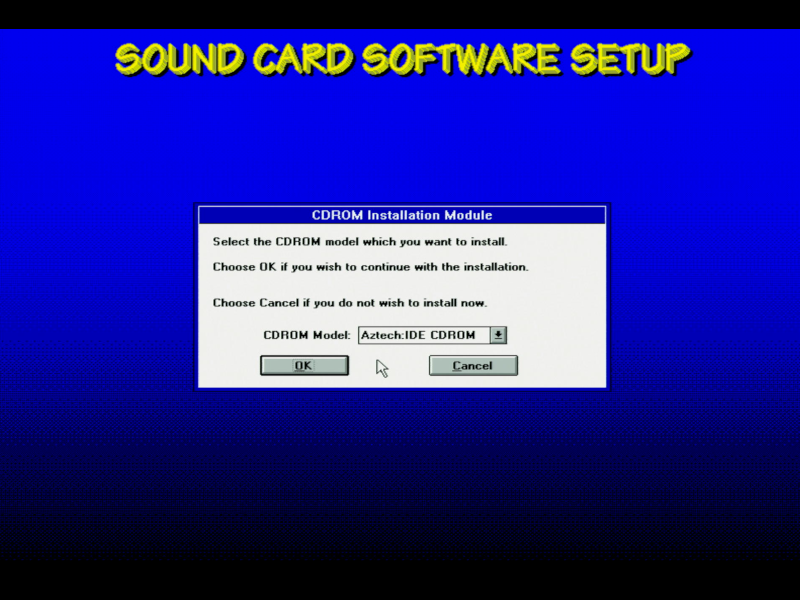
Note: The "Aztech IDE" option here was the only one in the dropdown.
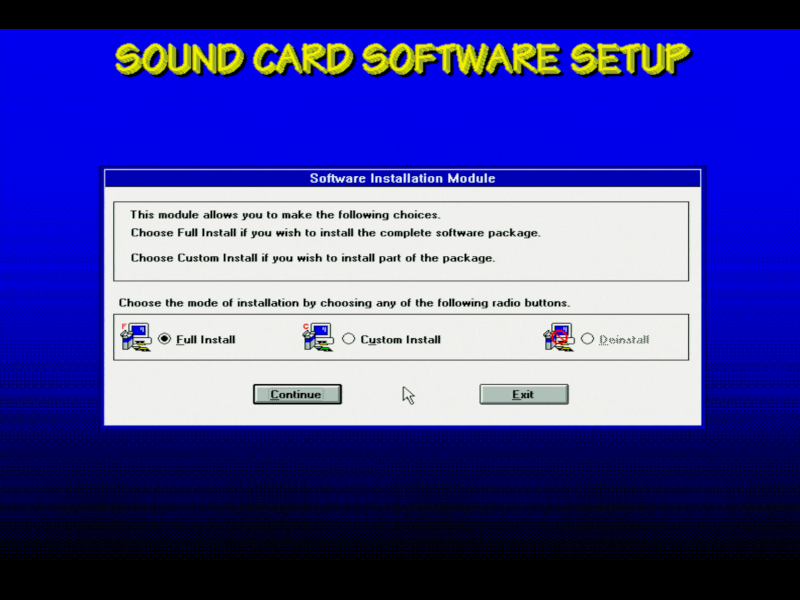
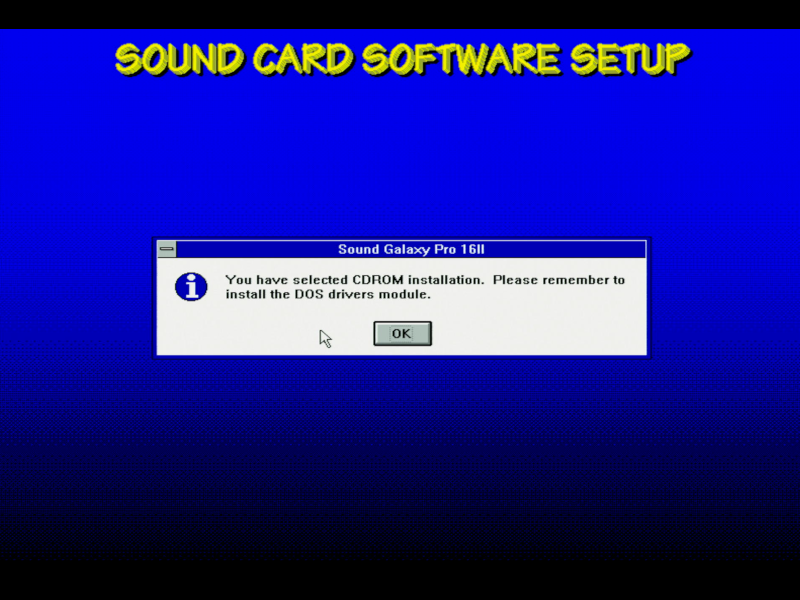
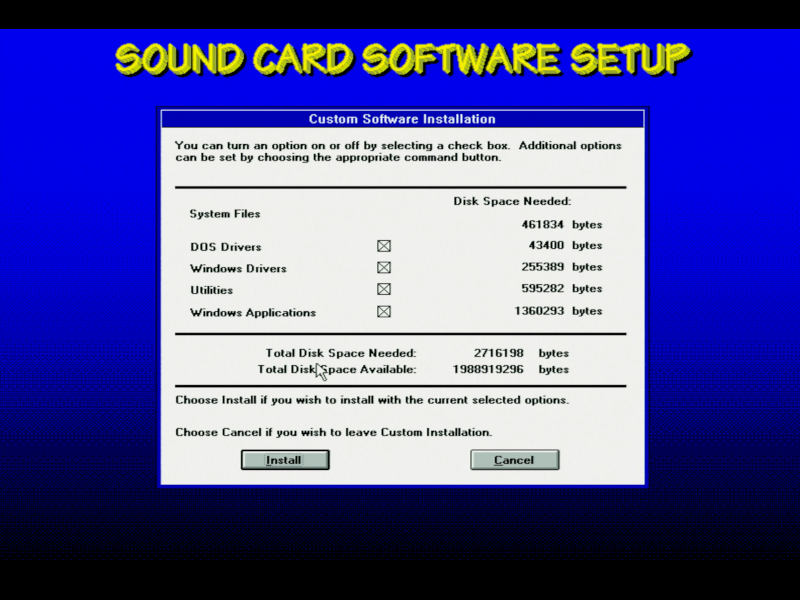
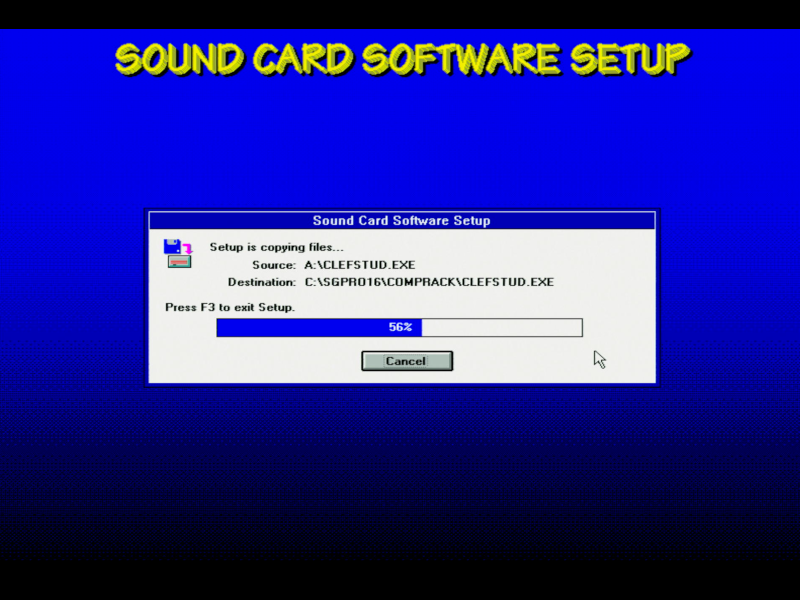
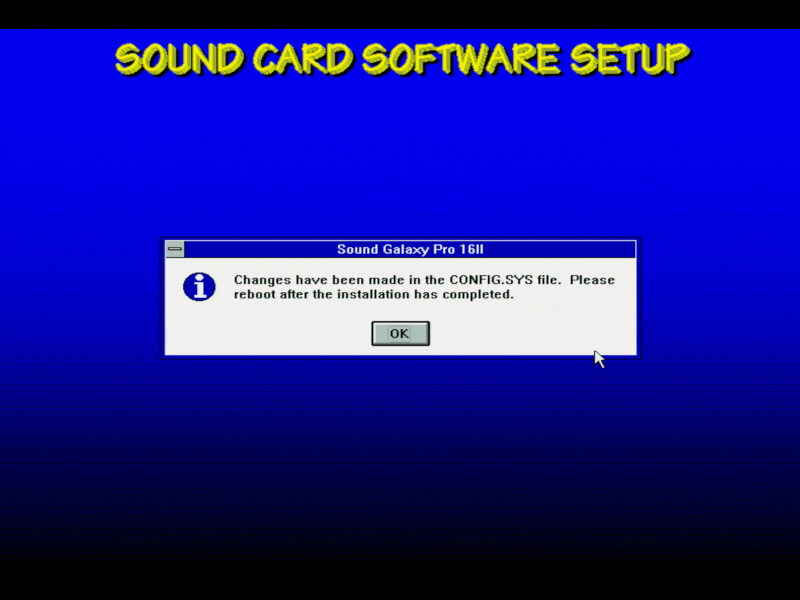
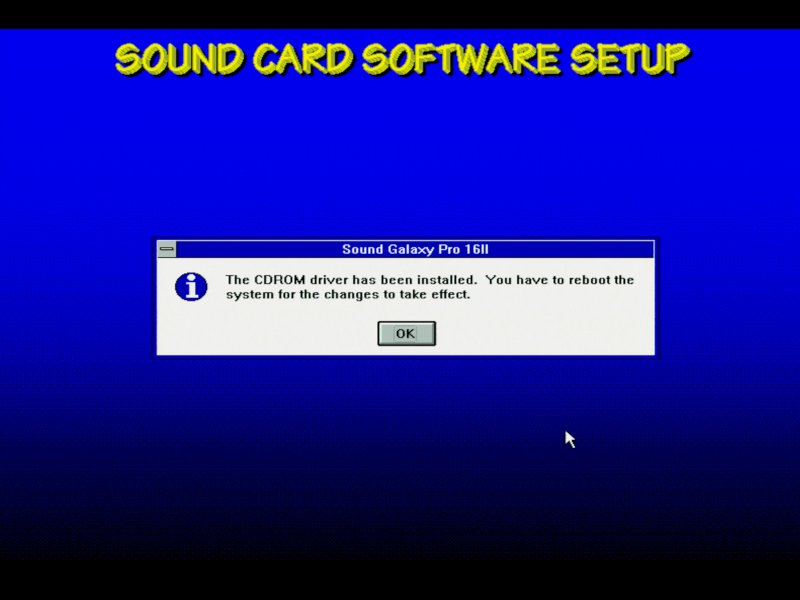
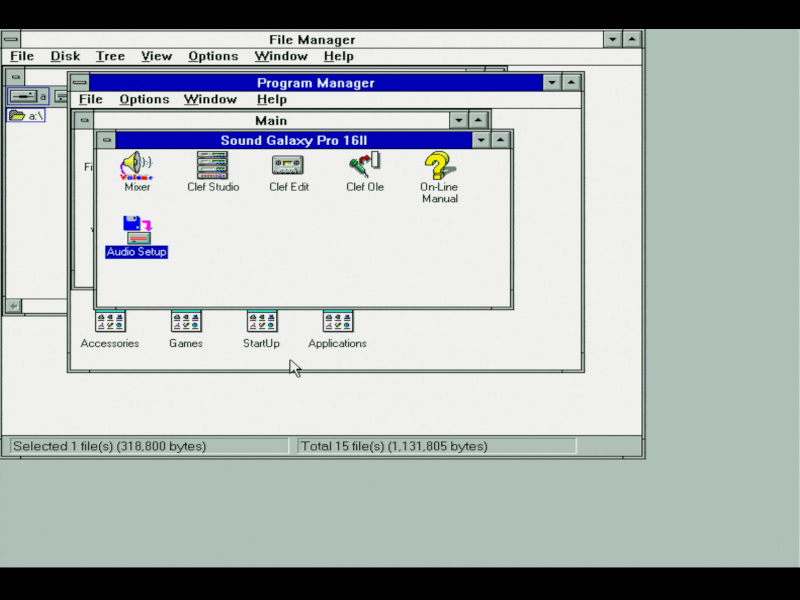
The included utilities are:
- Mixer - a Windows version of the audio mixer
- Clef Studio - a CD audio player
- Clef Edit - a WAV file editor
- Clef Ole - allows you to insert audio clips into documents
- Online Manual - the same manual that gets installed with the DOS drivers (USER.HLP))
- Audio Setup - re-runs the SETUP utility, allowing you to change the hardware and software configuration.
The Audio Setup utility has some bugs (see above right) - when run from the Sound Galaxy Pro 16B Program Group, it complains if you try the 'Software Configuration' option again as the source and destination drives are the same! The workaround is run SETUP from the floppy disk. The rest of these tools aren't particularly interesting, so we'll skip them in this review.
In Part 3, we'll get into recording some audio from the card and see how it compares to others.